A Settings page allows users to manage their account preferences, application settings, notifications, and other configurable options from a single location.
Prerequisites
- An application has already been created.
- You have access to the App Editor.
Steps
Navigate to the App Editor.
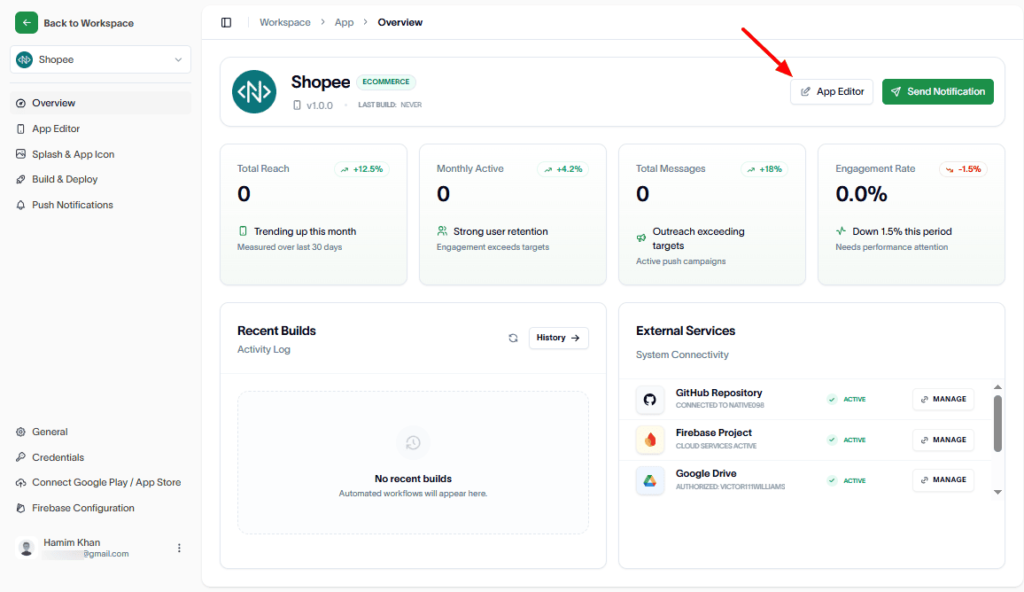
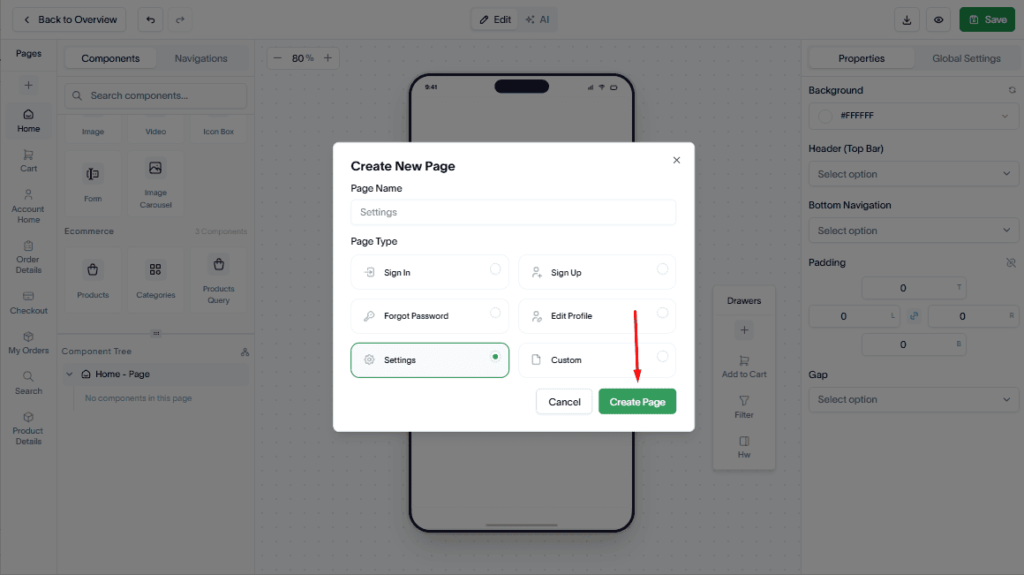
In the Pages section, click the Add (+) button to create a new page.
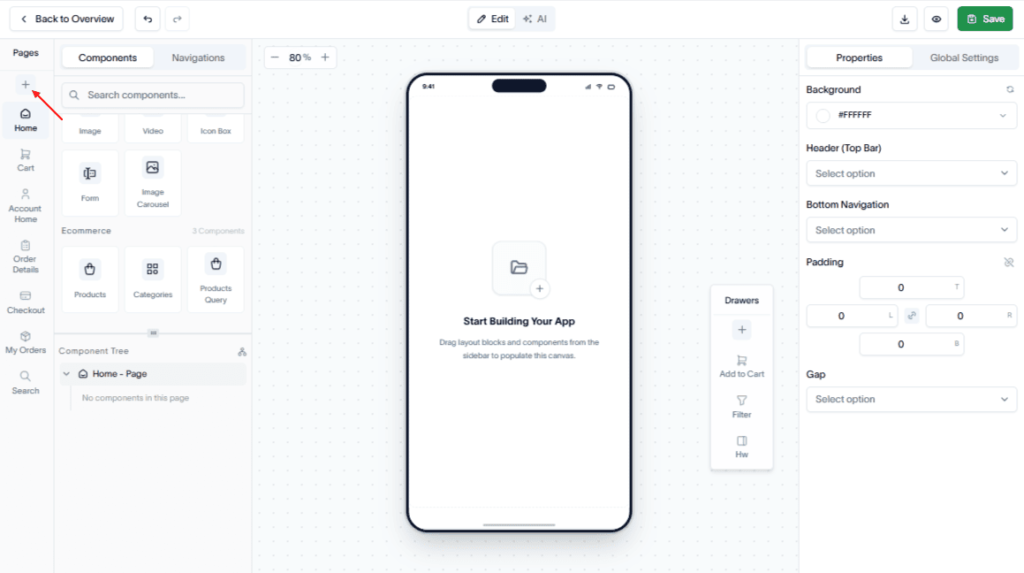
Now, enter a name for the page.
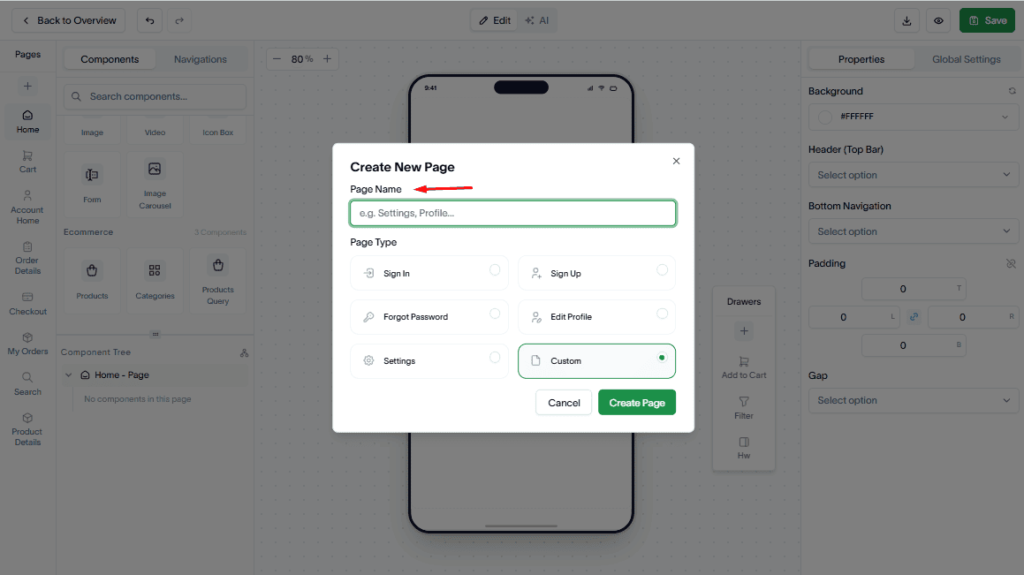
Next, from the Page Type dropdown, select Settings.
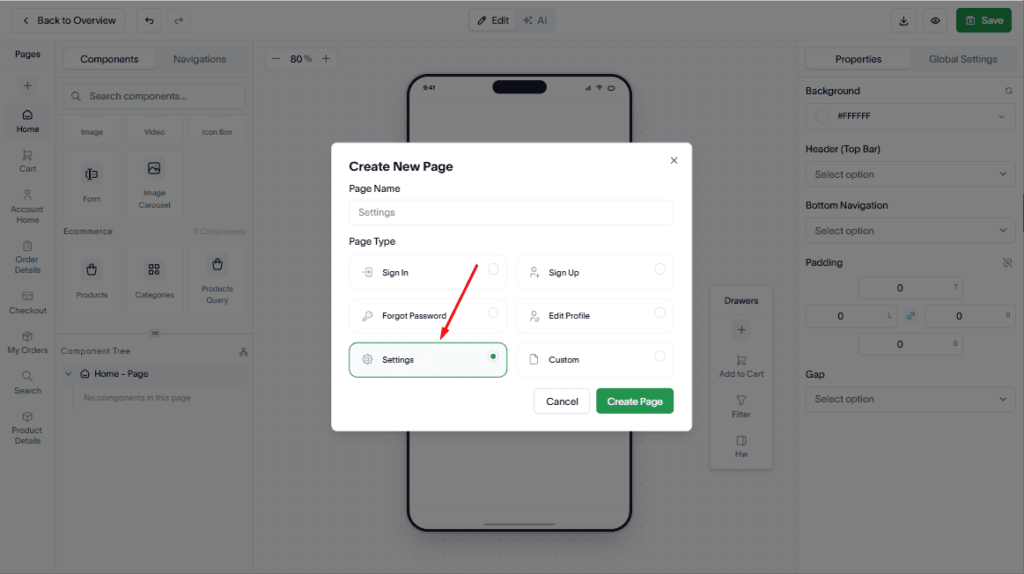
Then, hit the Create Page button.
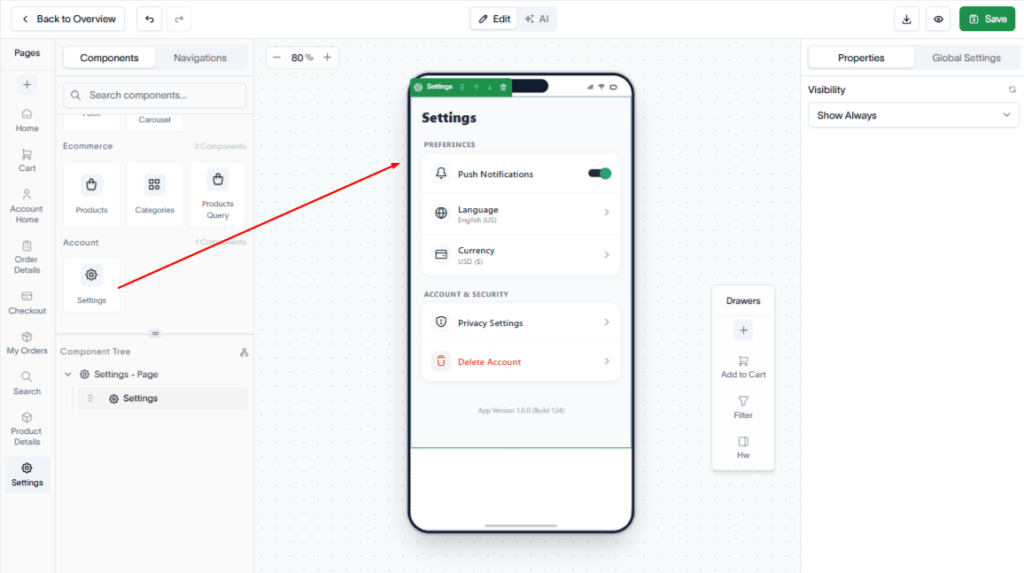
Now, use the drag-and-drop editor to add the required Core, Account, and other available components to the page.
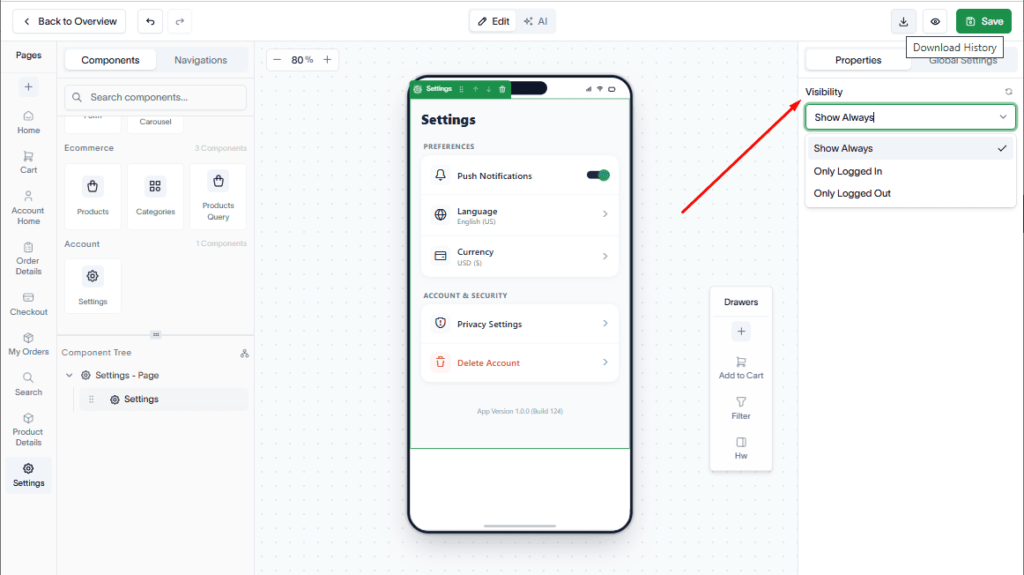
Moreover, you can use the Visibility option in the Properties panel on the right-side top bar to control when the selected component is displayed.
Options:
- Show Always – Visible to all users.
- Only Logged In – Visible only to logged-in users.
- Only Logged Out – Visible only to users who are not logged in.
Finally, click Save to save your changes.
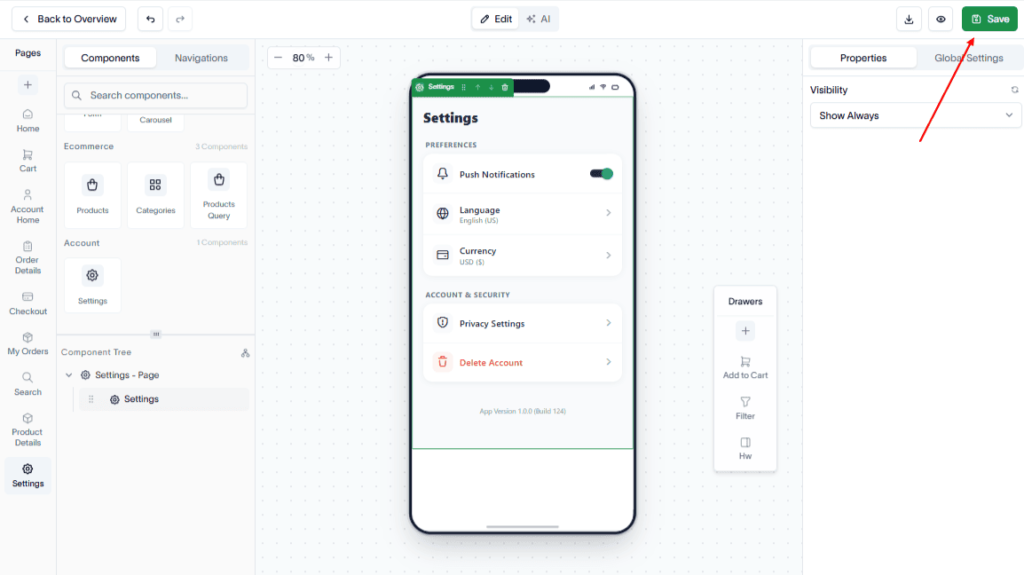
Result
A Settings page is created and added to your application, allowing users to manage their account and application preferences.