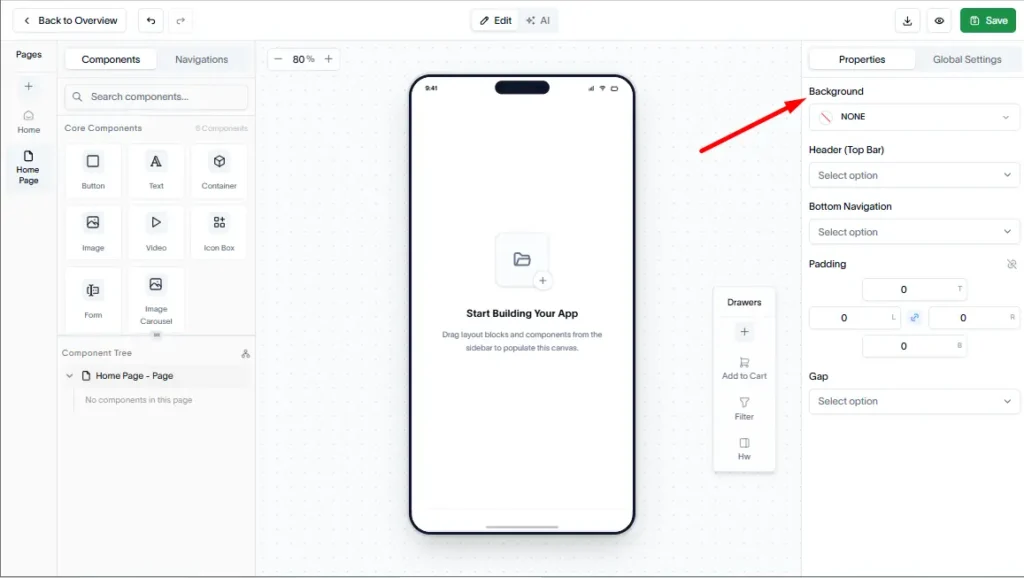
Pages help organize your application’s content and functionality. Follow the steps below to create and customize a new page.
Step 1: Open the create page modal
Navigate to the Pages section and click the + (Plus) button to open the Create New Page modal.
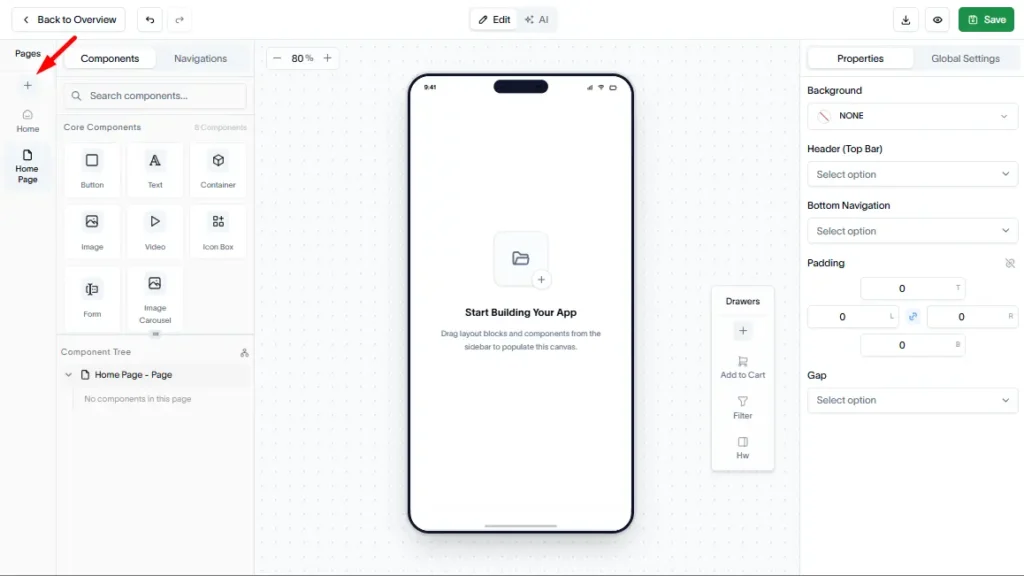
Step 2: Enter page details
Provide the required page information:
- Page Name – Enter a descriptive name for the page.
- Page Type – Select the appropriate page type based on your requirements.
Once the details are entered, click Create Page to add the page to your application.
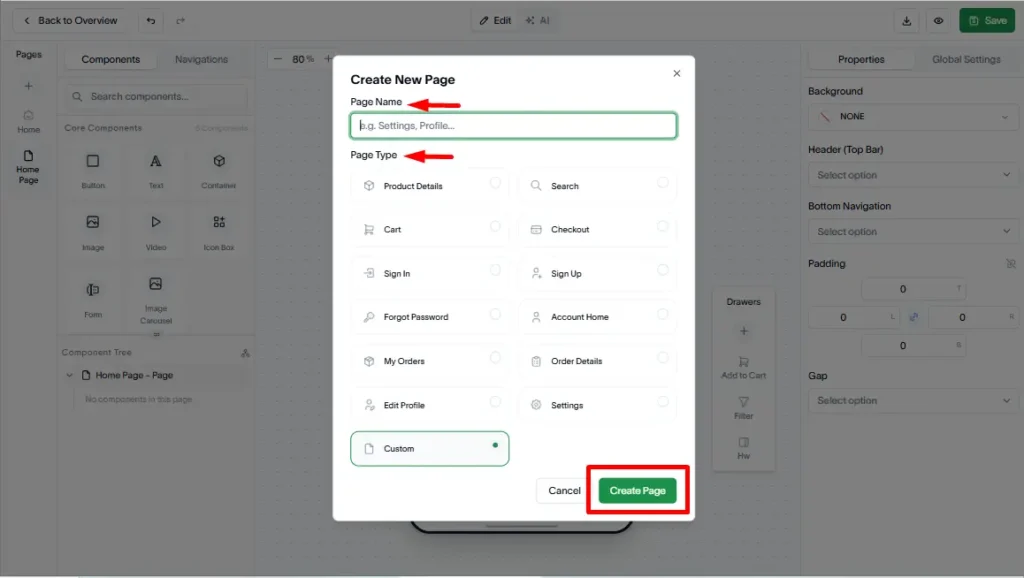
Step 3: Customize the page design
After the page is created, use the right sidebar to customize its appearance and layout.
You can modify various design settings to match your application’s branding and user experience requirements.
Step 4: Configure navigation elements
The right sidebar also allows you to configure navigation components for the page, including:
- Header – Select and customize the page header.
- Top Bar – Choose a top navigation bar if required.
- Bottom Navigation – Select a bottom navigation menu for easy user access.