The Forgot Password page in your app allows users to securely reset their account password if they have forgotten their login credentials.
Prerequisites
- An application has already been created.
- You have access to the App Editor.
Steps
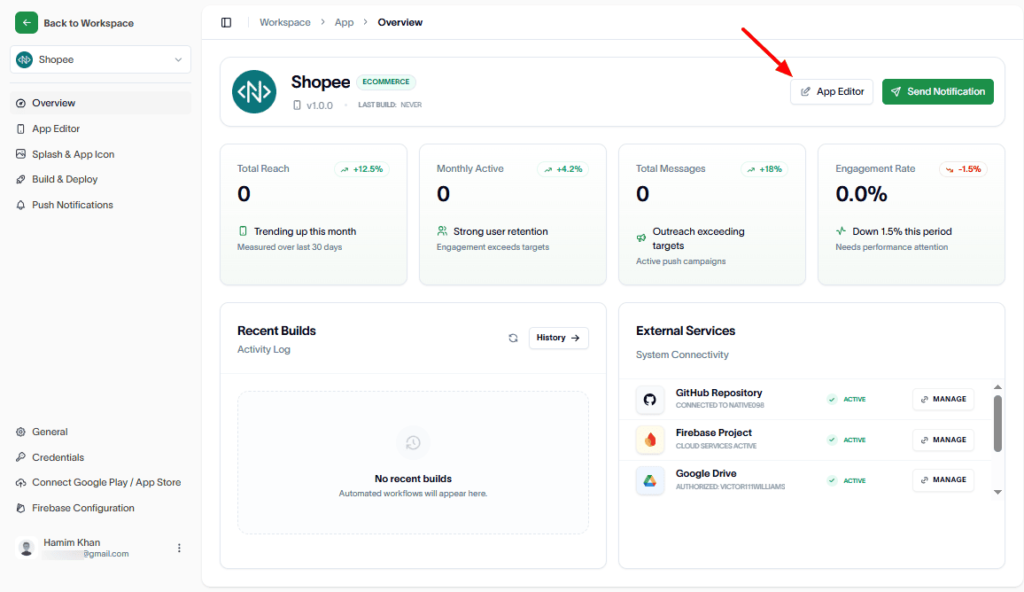
Navigate to the App Editor.
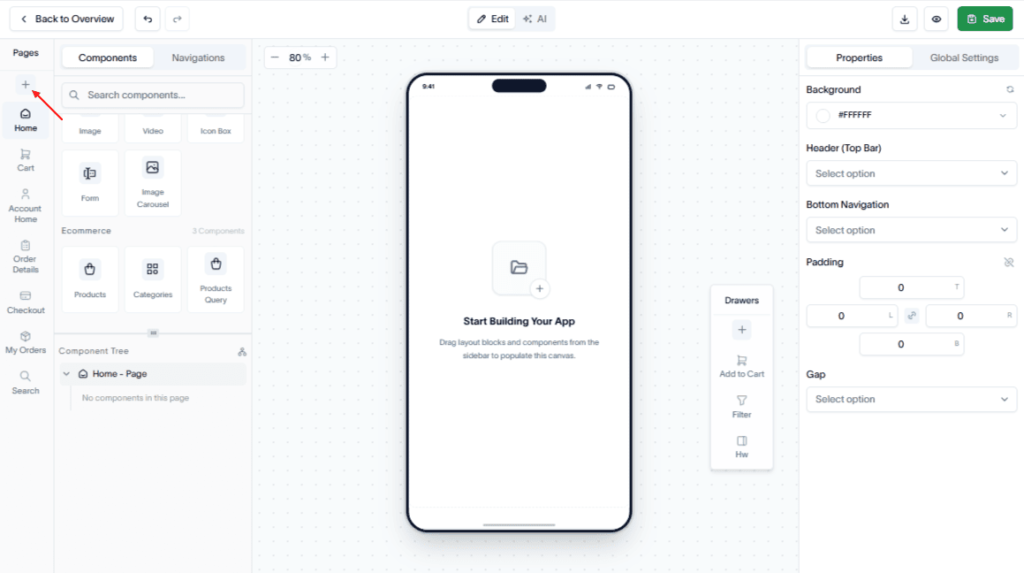
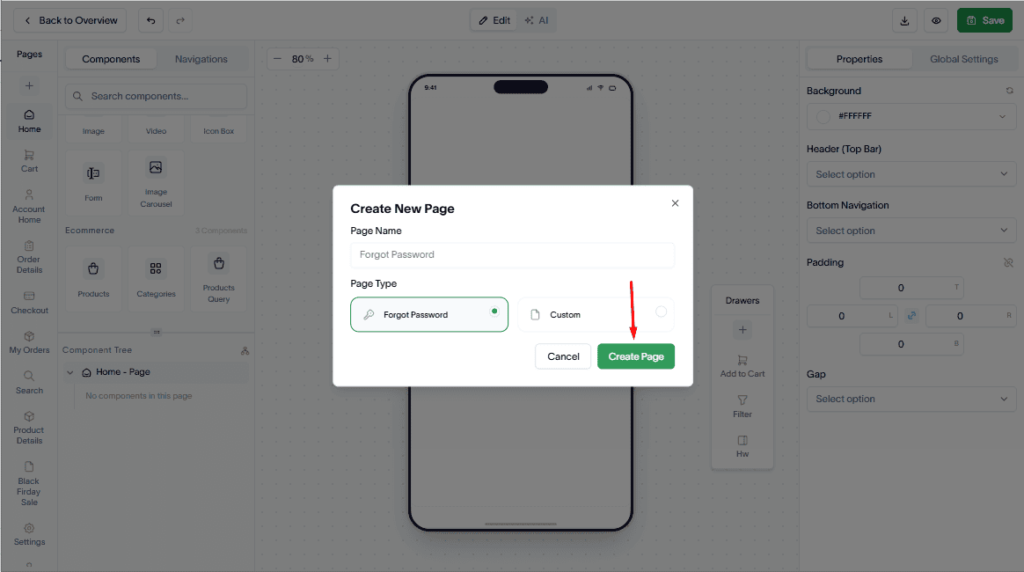
In the Pages section, click the Add (+) button.
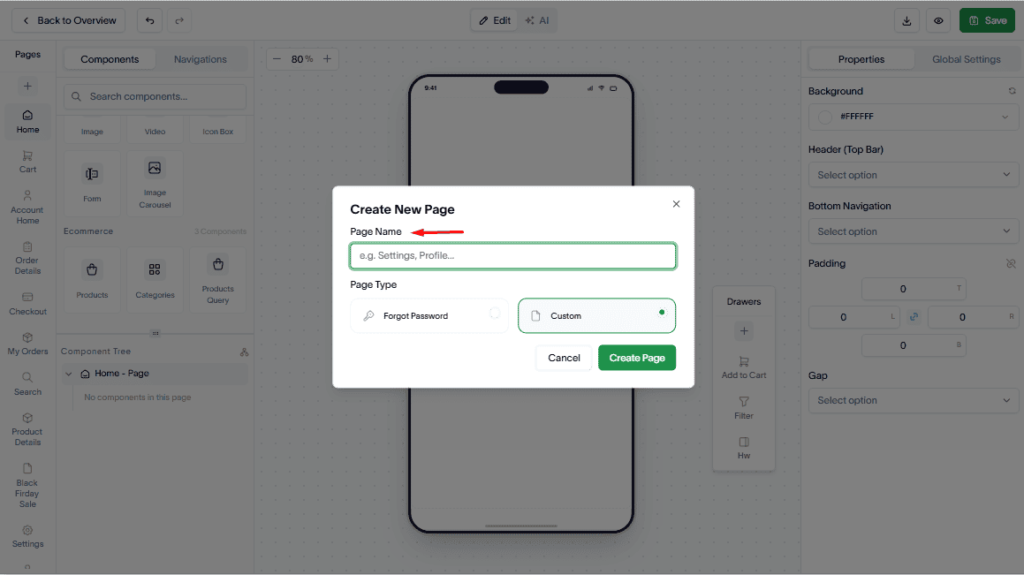
Enter a name for the page.
Then, from the Page Type dropdown, select Forgot Password.
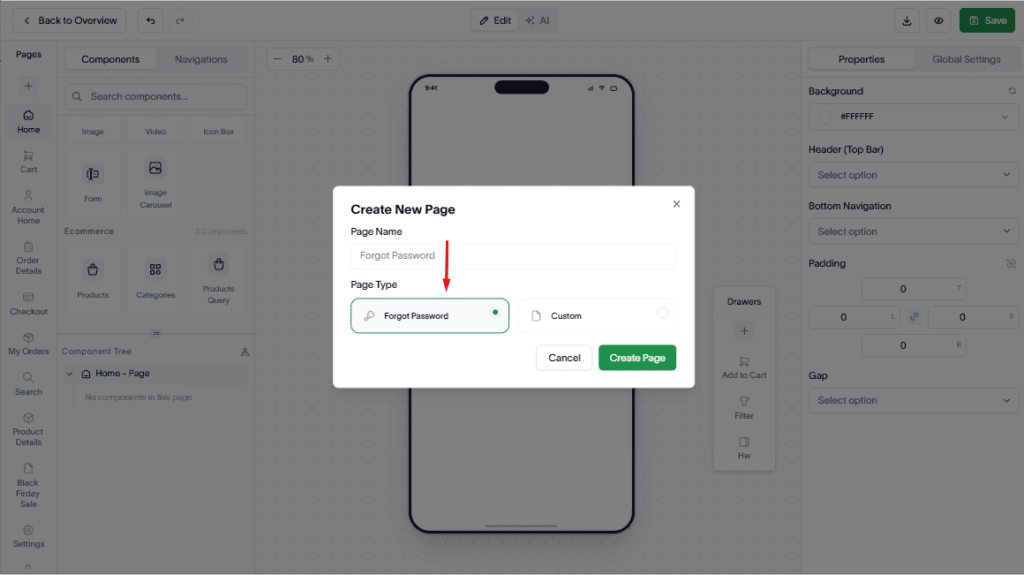
Next, click Create Page to add the page to your application.
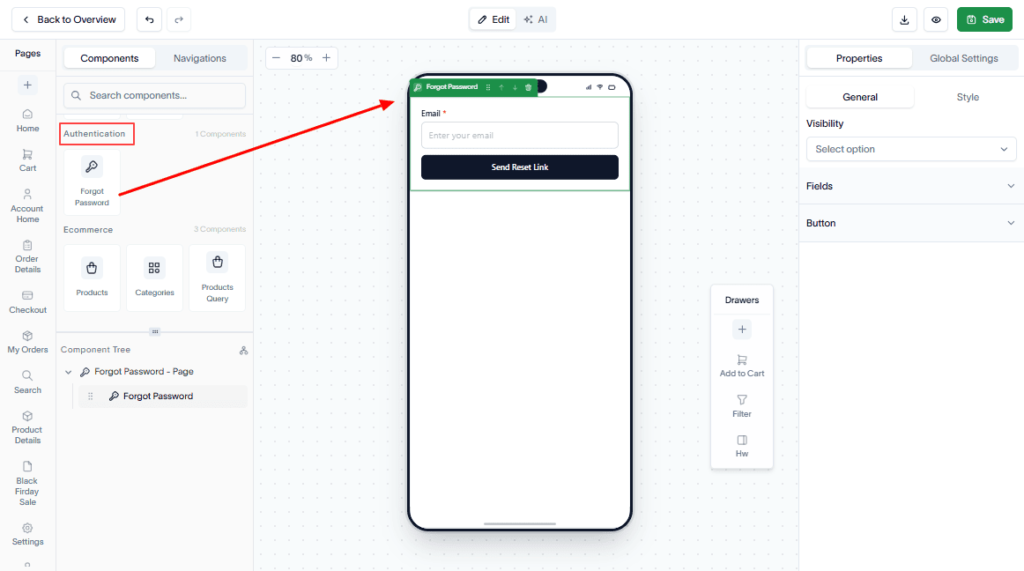
Now, drag and drop the Authentication component to the page.
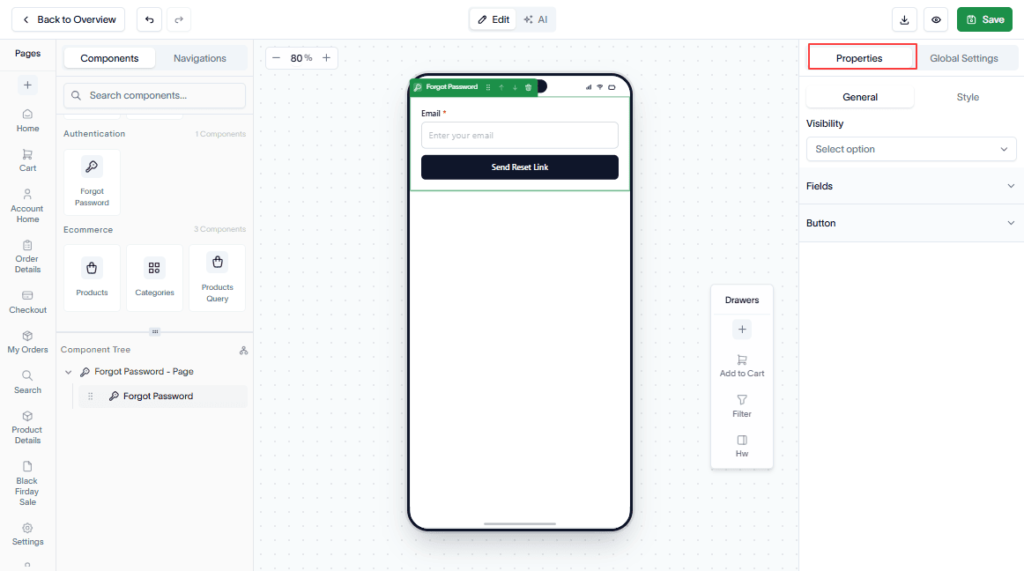
Configure the page component. To do this, go to the Properties panel on the top right-side bar.
Then, you get General. Underneath it, set the Visibility option.
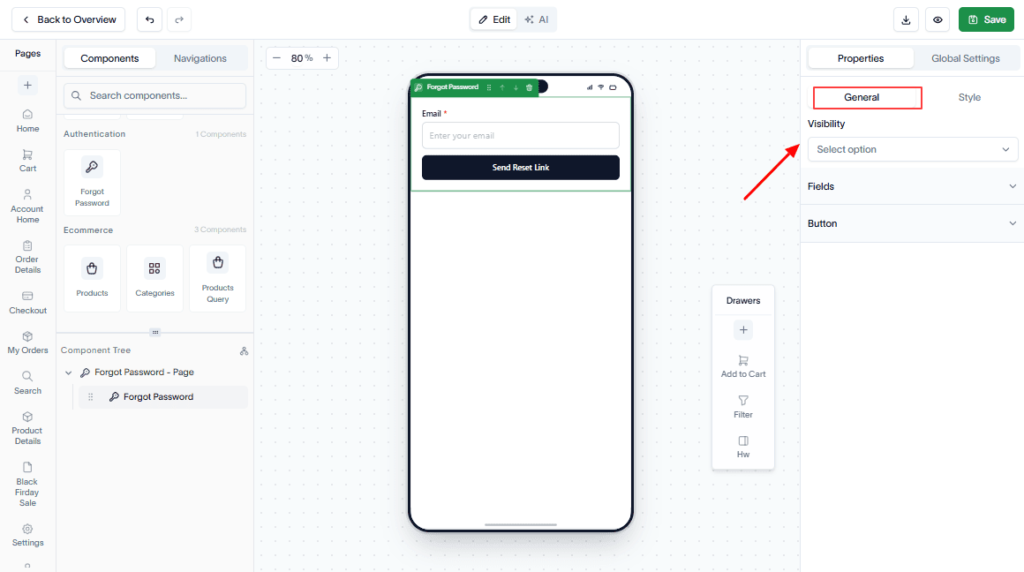
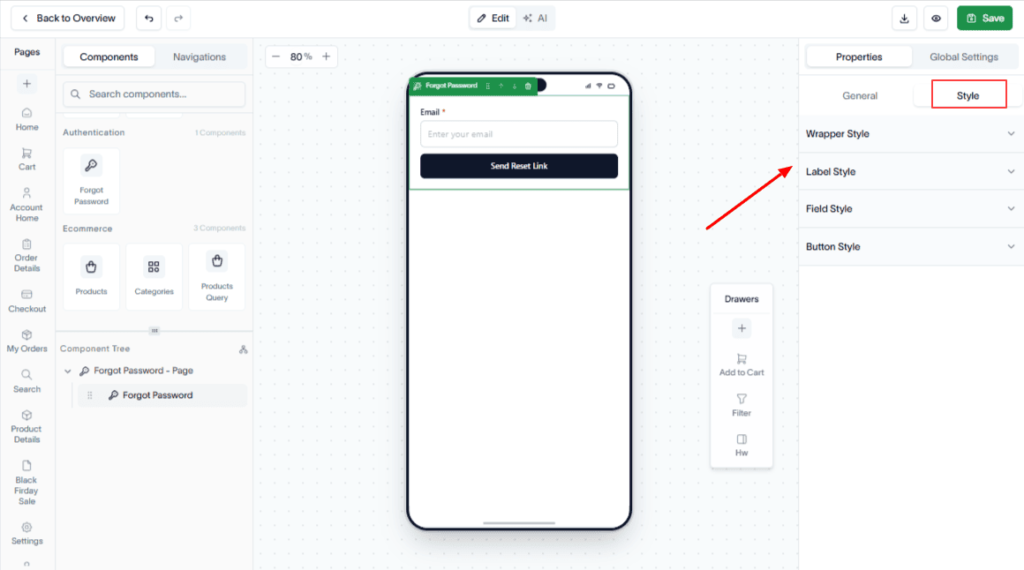
Under the Style option, you can style the Wrapper, Label, Field, and Button.
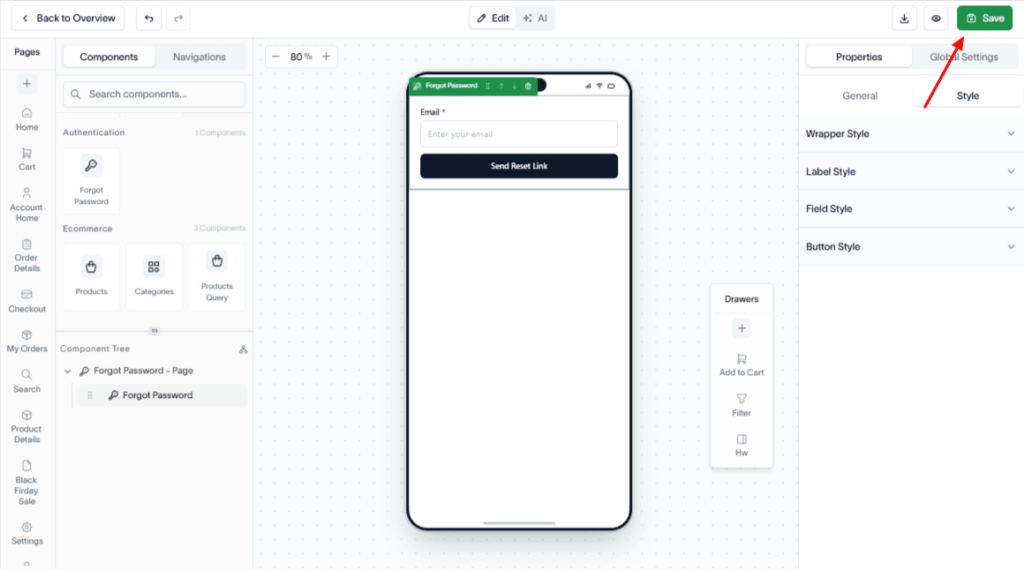
Finally, click Save to save your changes.
Result
A Forgot Password page is created, allowing users to reset their password and regain access to their account.