A Custom page allows you to create unique screens for your app, using the drag-and-drop editor. You can design pages such as landing pages, promotional pages, informational pages, or any other custom layout to meet your application’s requirements.
Prerequisites
- An application has already been created.
- You have access to the App Editor.
Steps
Navigate to the App Editor.
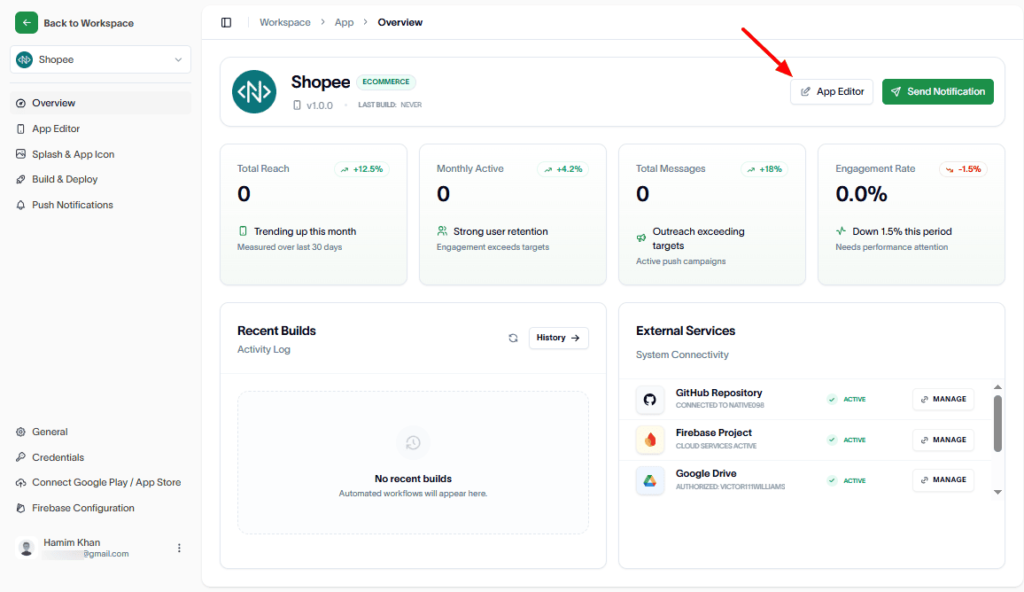
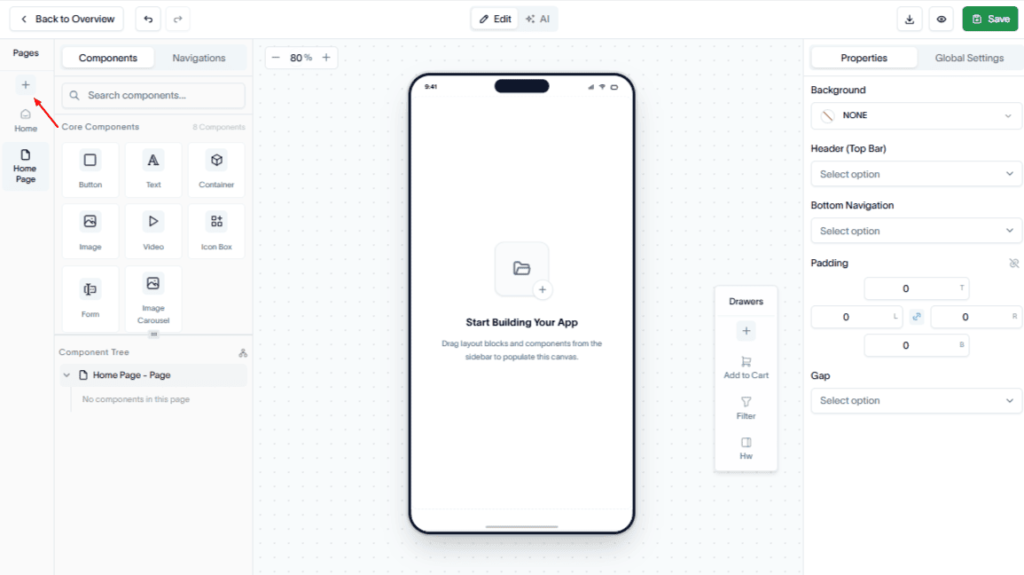
In the Pages section, click the Add (+) button to create a new page.
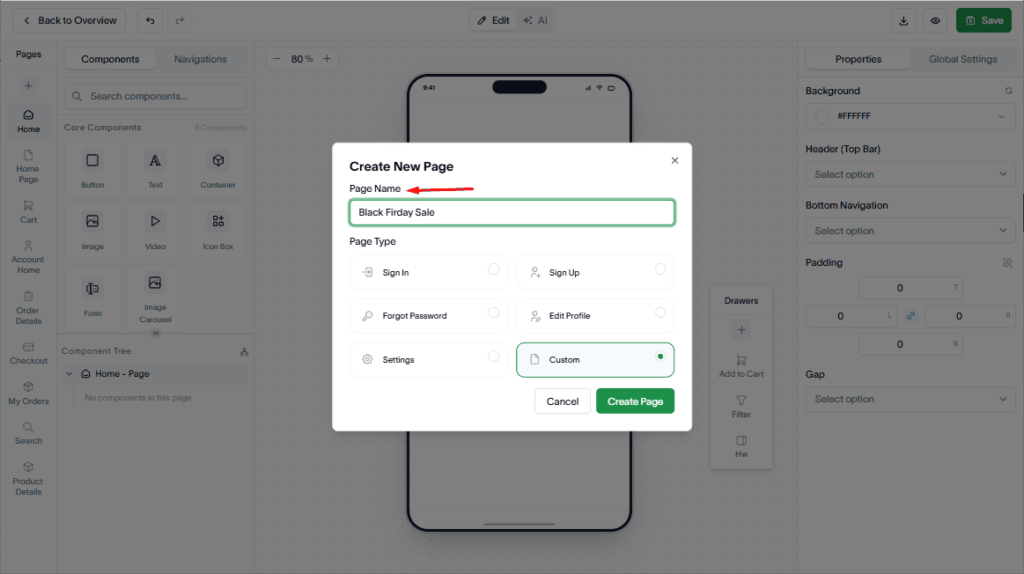
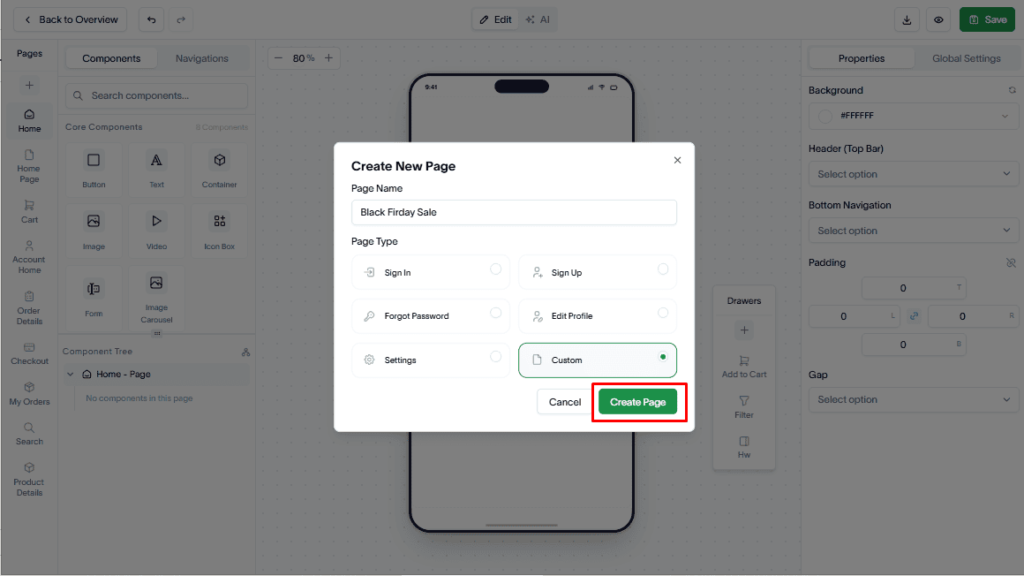
Enter a name for the page.
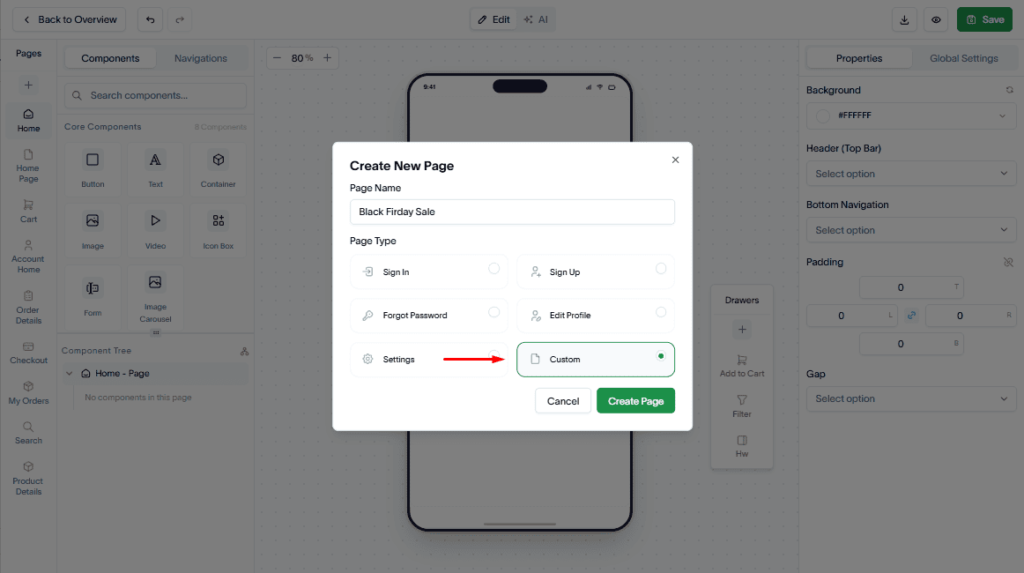
Then, from the Page Type dropdown, select Custom.
Hit the Create Page button.
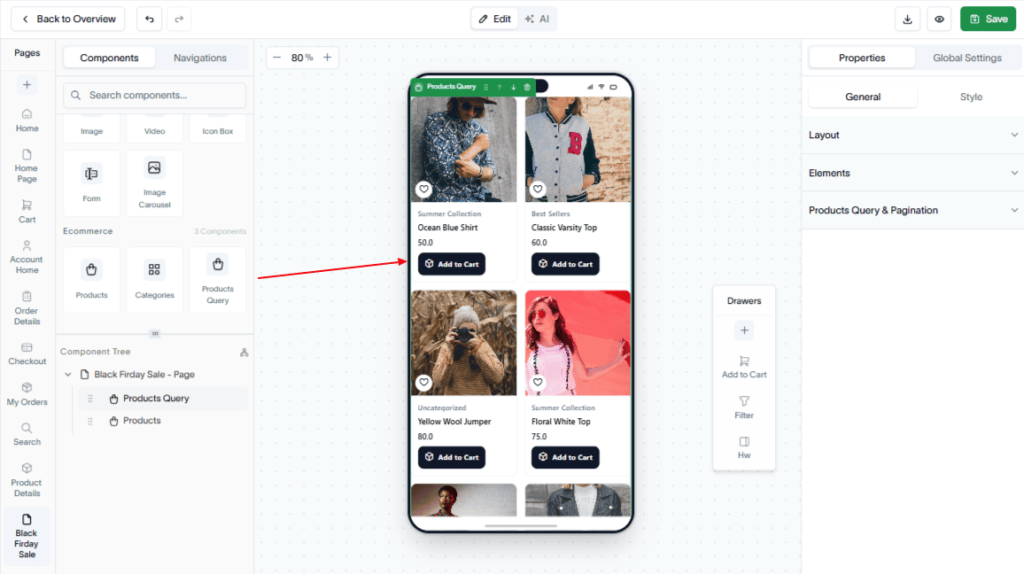
Then, use the drag-and-drop editor to add the required Core, Ecommerce, and other available components to the page.
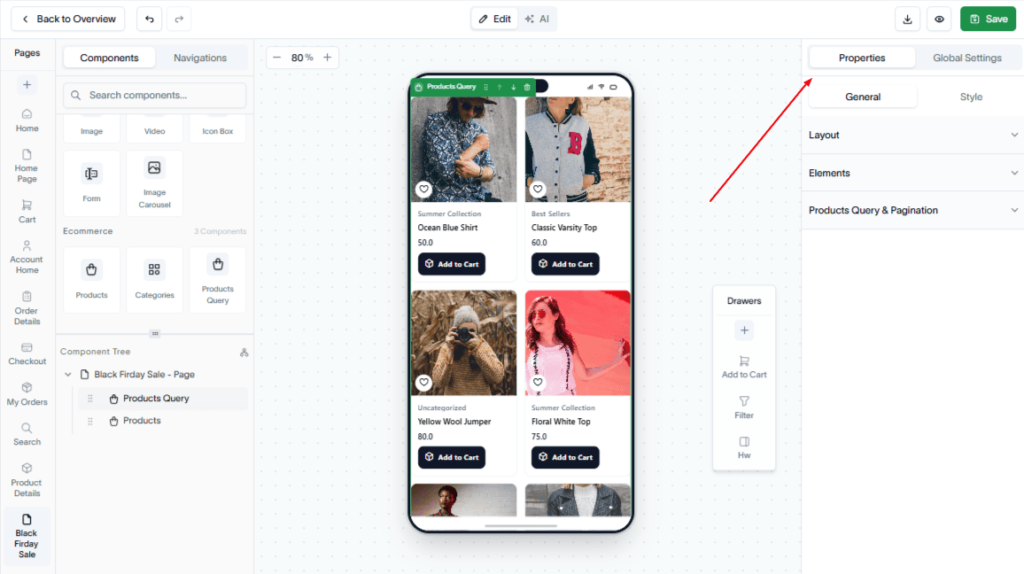
Up next, go to the Properties panel on the top-right side to arrange, configure, and style the selected component. It provides settings for layout, elements, styling, and other component-specific options to customize your page.
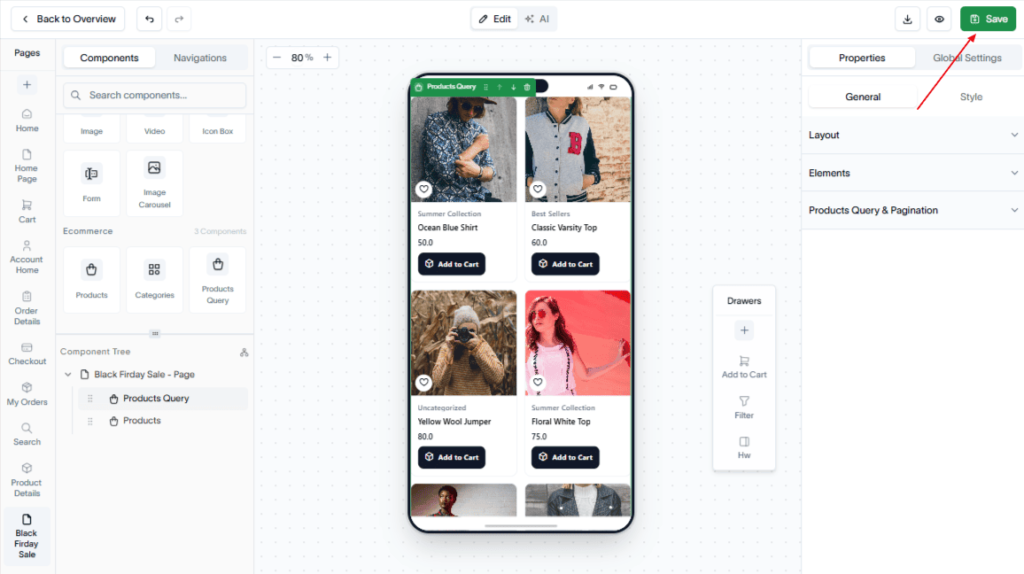
Finally, hit the Save button to save your changes.
Result
A custom page is created and added to your application, ready to be linked from your app’s navigation or other pages.