The Sign In page enables registered users to securely access your application.
Prerequisites
- An application has already been created.
- You have access to the App Editor.
To create a Sign In page:
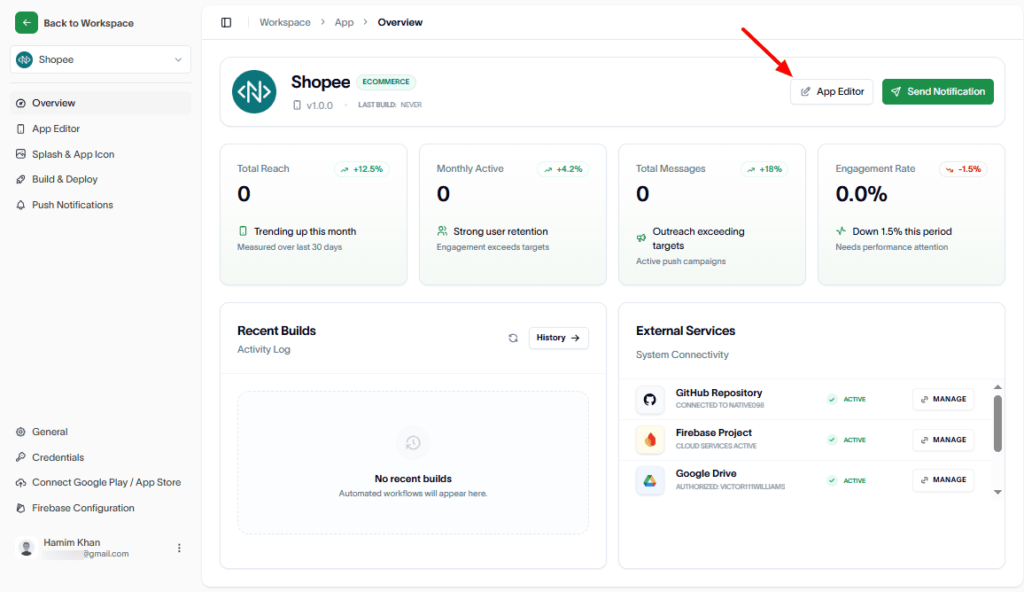
At first, navigate to the App Editor.
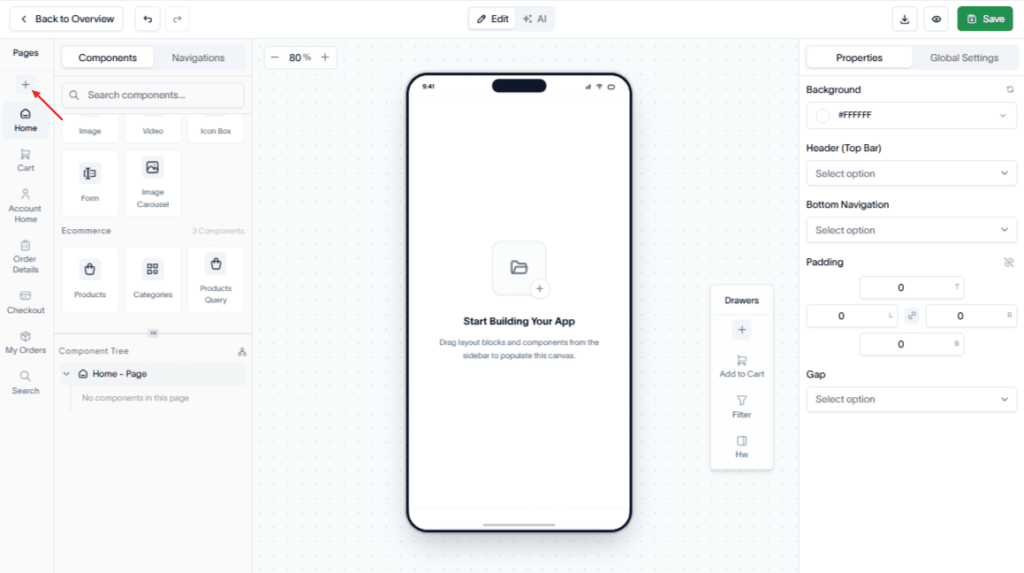
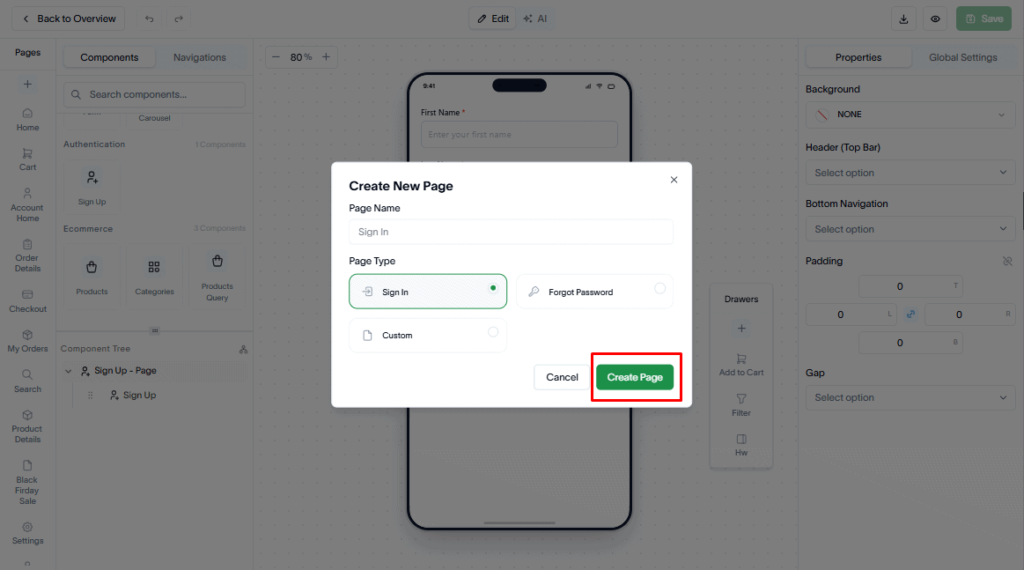
Click Add (+) under Pages.
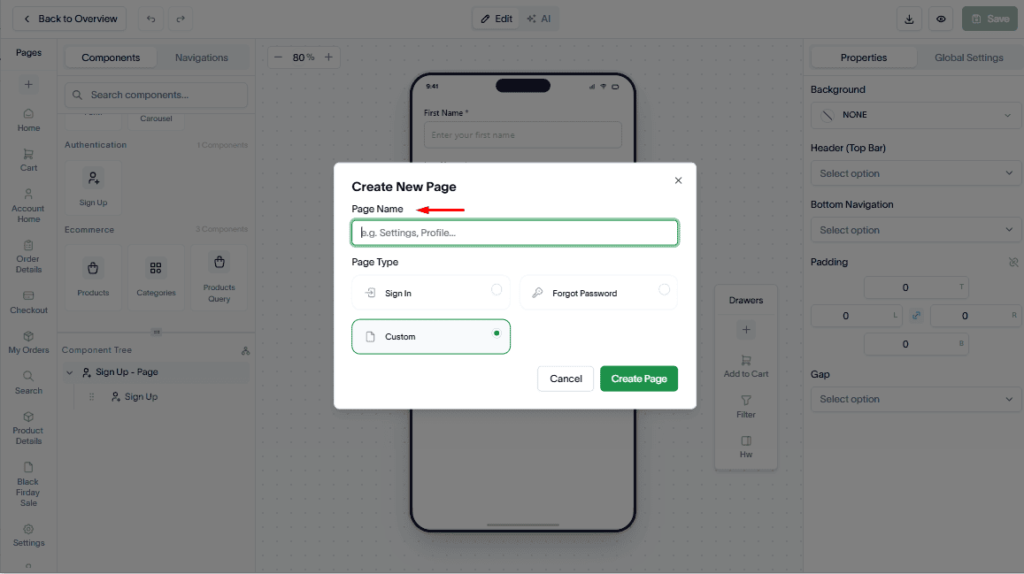
Enter a name for the page.
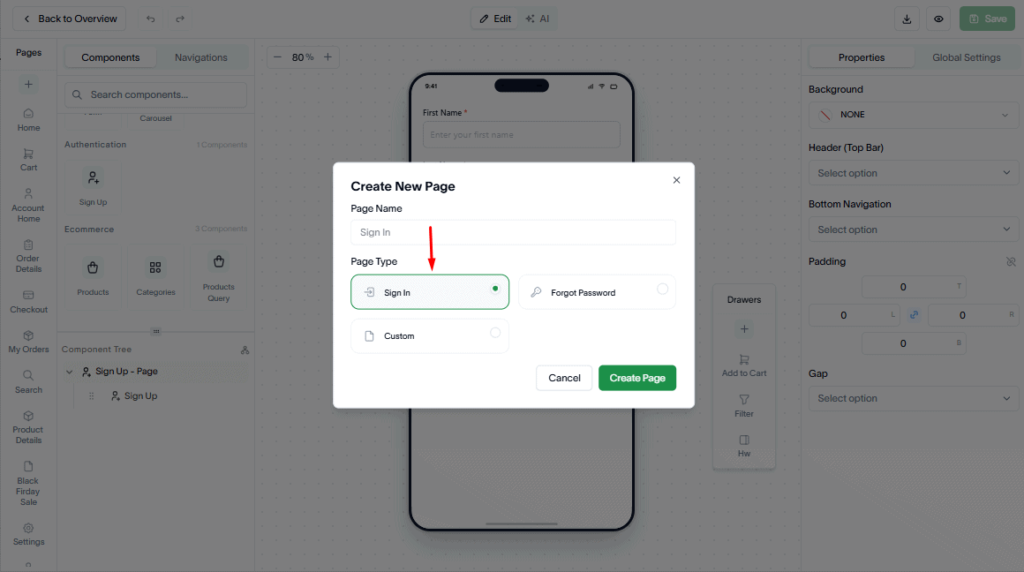
Then, from the Page Type dropdown, select Sign In.
Next, click Create Page button.
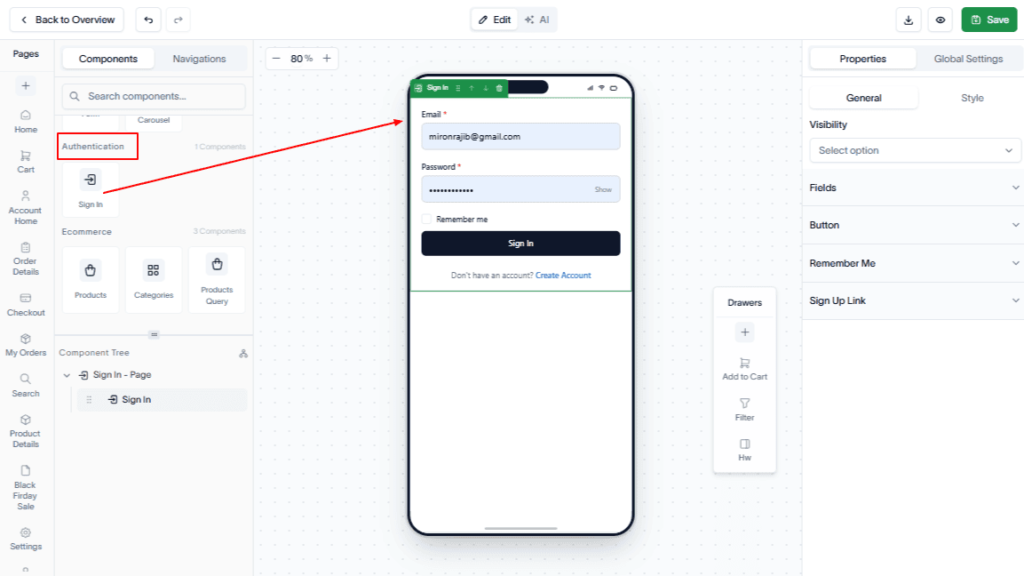
Now, drag and drop the Authentication component to the Sign In page.
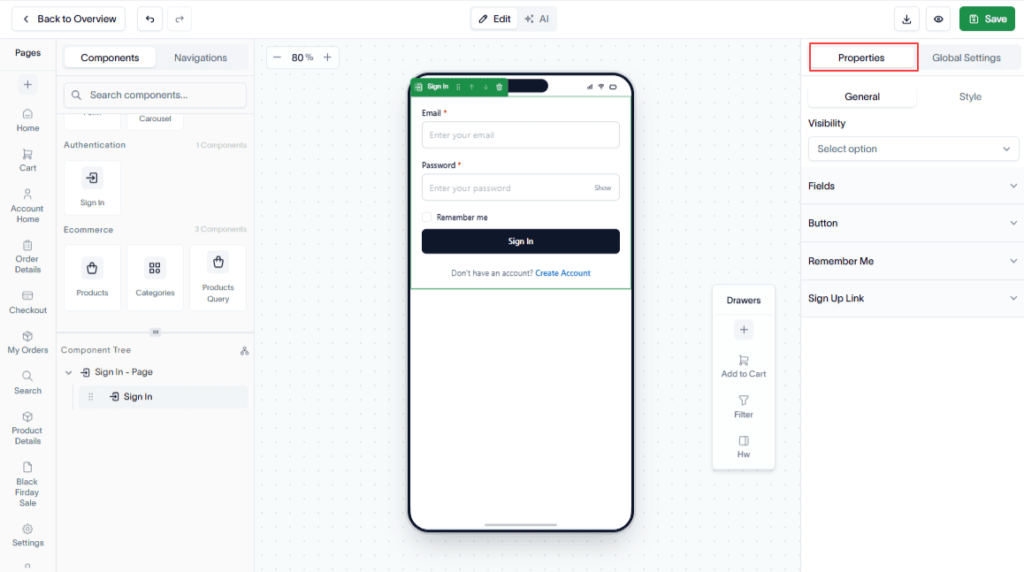
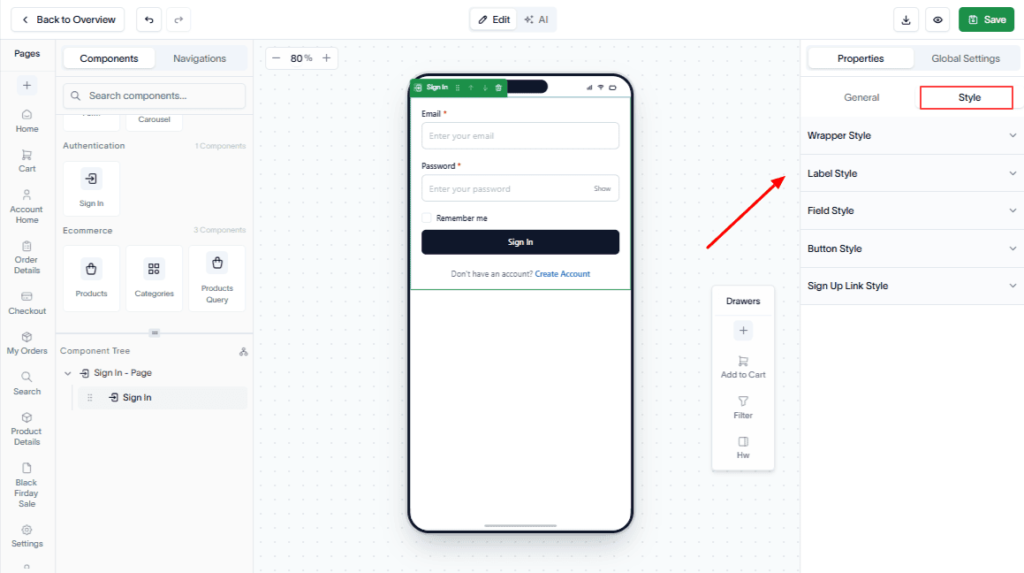
You can configure the Sign In page. To do this, go to the Properties panel on the right-side top bar.
Then, under General, you can get the Visibility option, Remember Me, Sign Up Link, and Button.
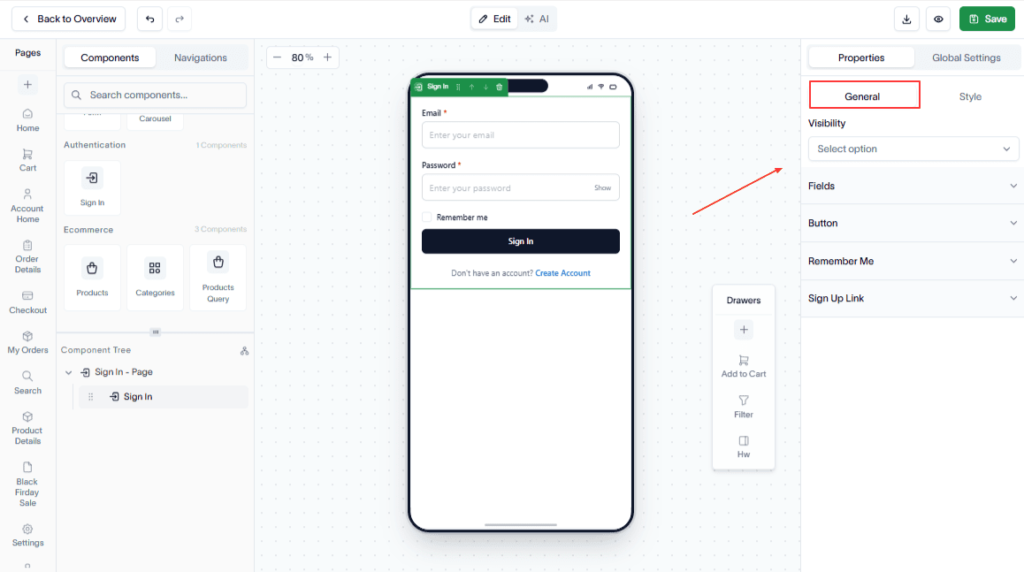
You can also style the Wrapper, Button, Label, Field, and Sign Up Link.
Finally, hit the Save button to save the page.
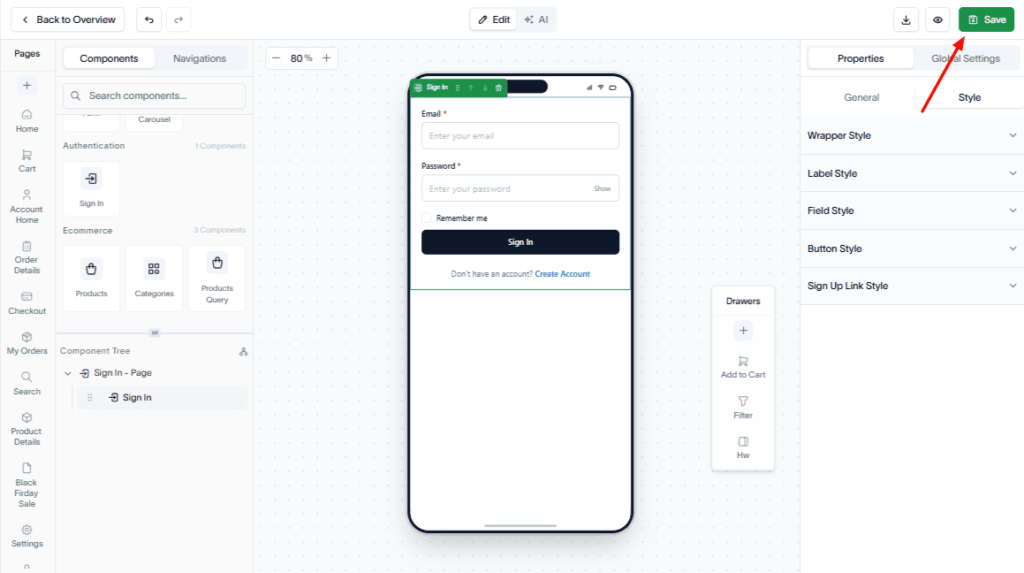
Once saved, the page is available for users to sign in.